Understand the two-way connection
BusinessCORE imports the records owned by each Flow. A Flow can also import the CORE task and revenue views it needs. Because those are separate imports, Google may ask you to authorize access in both spreadsheets.
1. Confirm the Flow URL in BusinessCORE
Open BusinessCORE and go to the SETUP or FLOW_REGISTRY tab. Confirm that the complete URL for the matching Flow is entered in its connection field. For ClientFlow, BusinessCORE imports the CLIENTS_WORKING records.
A first-time connection may initially display #REF!. That does not automatically mean the system is broken; it can mean Google Sheets is waiting for permission.
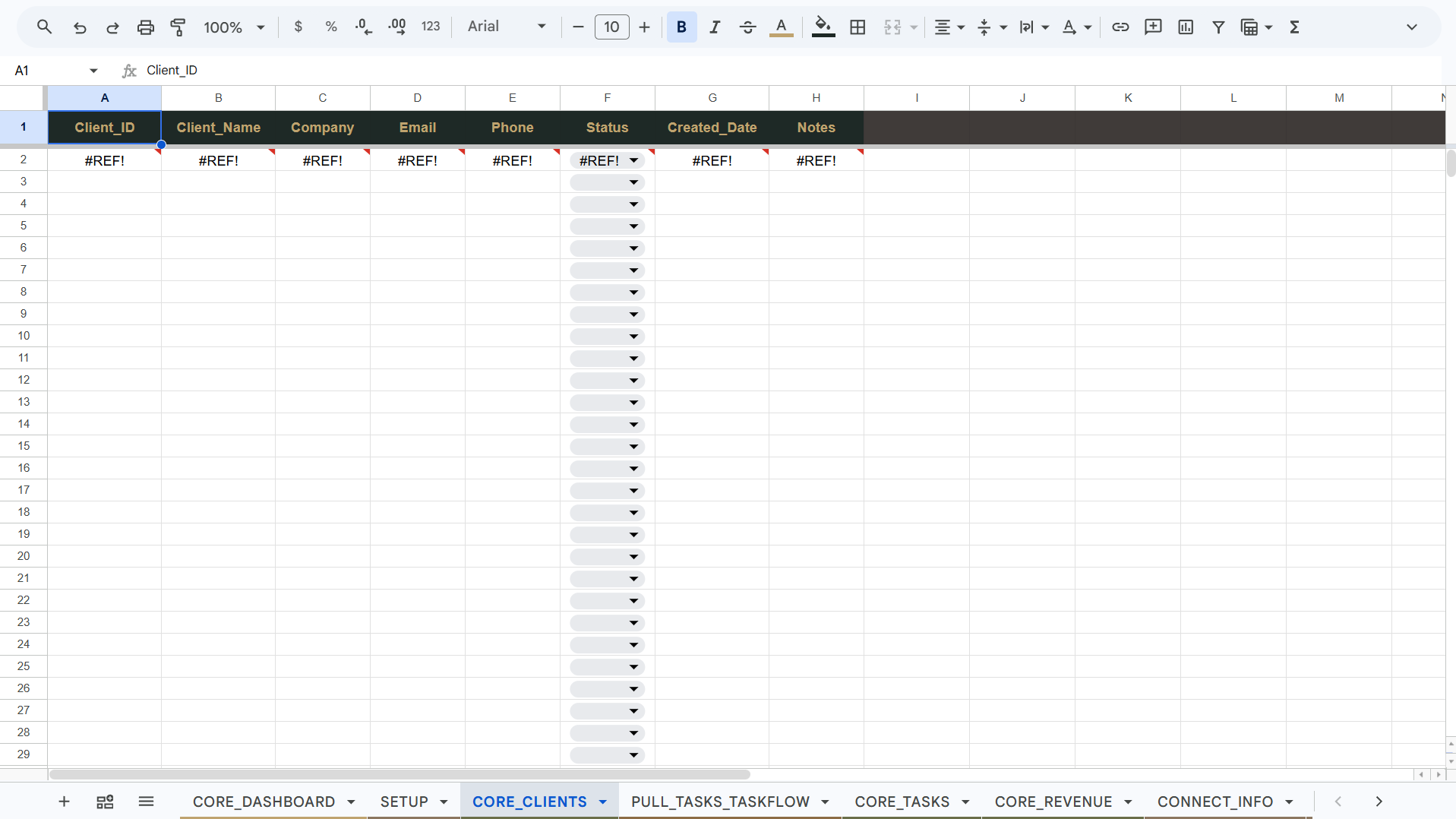
2. Look for one authorization cell
The corrected connection uses one import formula in the first destination cell. Select the single #REF! cell. Google Sheets should display a message explaining that the spreadsheets need to be connected.
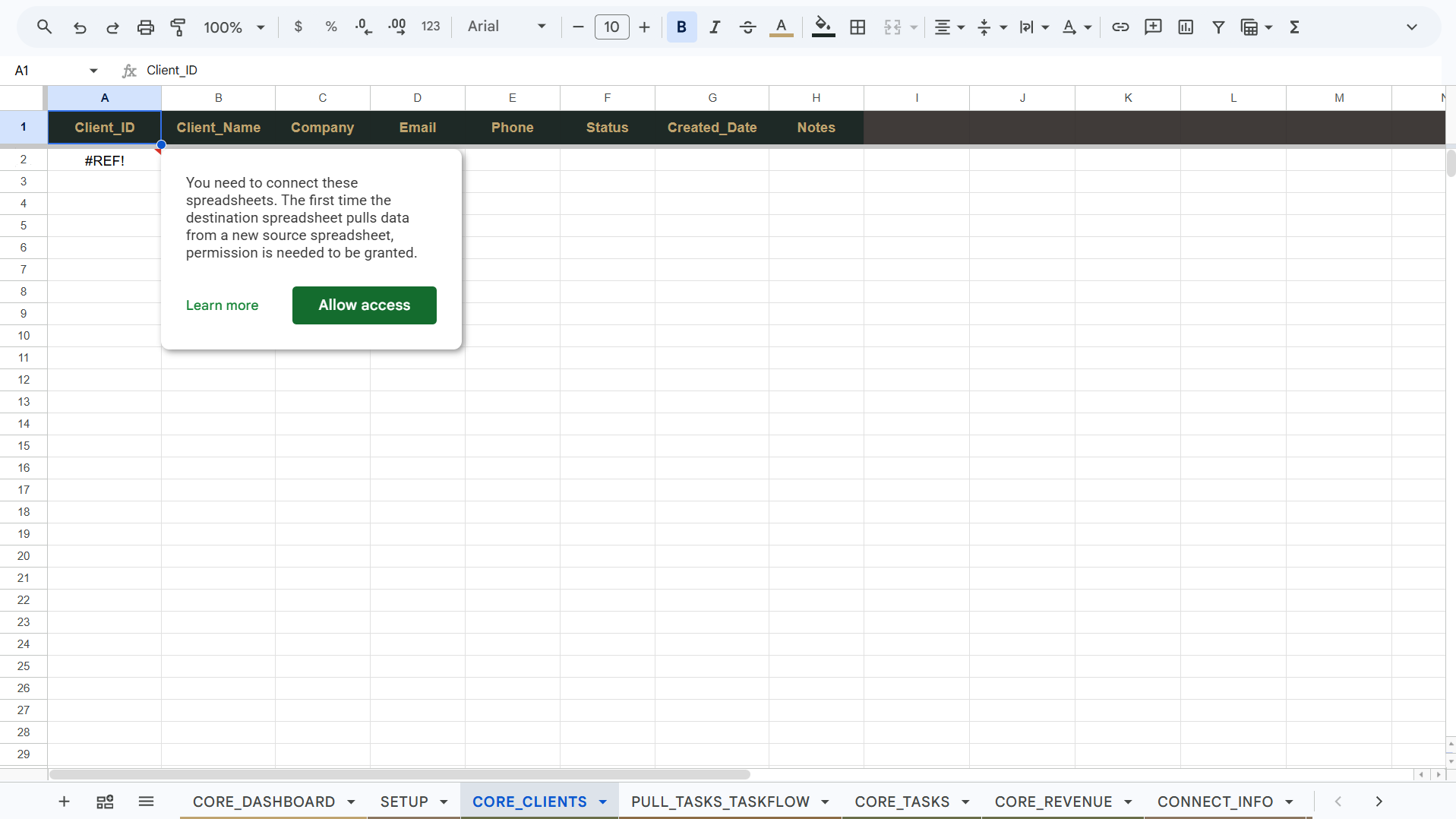
Pause before authorizing. Multiple independent errors across one destination row can indicate that the connection area contains several formulas instead of one array import. Do not delete formulas casually; use TaskSavvy support material or CORE Care to verify the configuration.
3. Allow access and wait for the import
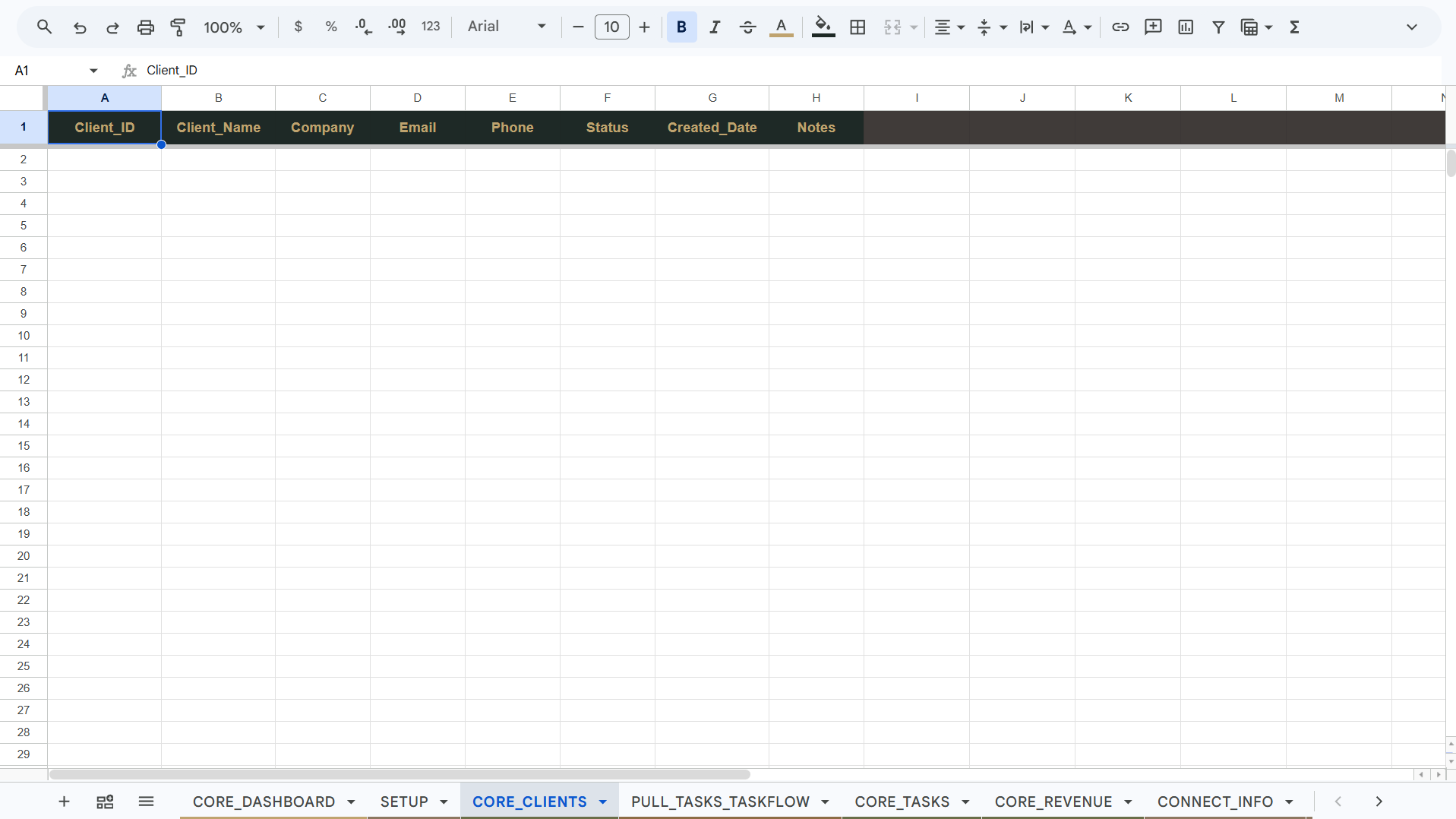
Click Allow access. Google Sheets will establish permission between the two files and recalculate the import. When the source Flow contains no records yet, the destination will look blank beneath its headers. That is a successful empty state—not missing data.
4. Authorize the connection inside the Flow
Return to the individual Flow. Open each pull tab that imports information from BusinessCORE, select its first #REF! cell, and click Allow access. In ClientFlow, this includes its CORE task and revenue pull tabs.
- Authorize every intentional import prompt in the Flow.
- Confirm that the expected headers appear.
- Return to BusinessCORE and allow its import from the Flow.
- Do not enter operational data directly into a pull tab.
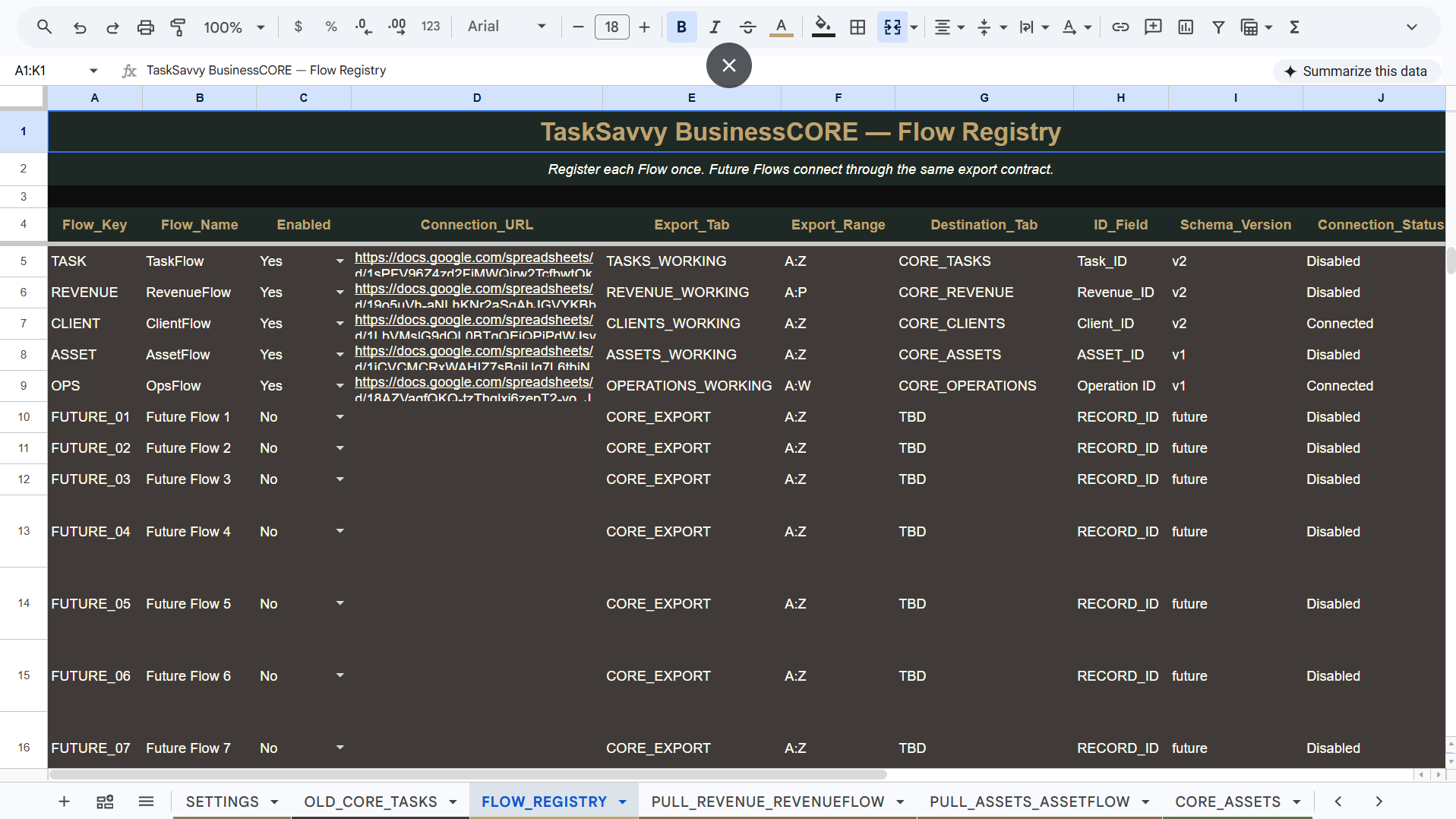
5. Verify the Flow Registry
Open BusinessCORE’s FLOW_REGISTRY. Find the Flow you connected and check its Connection_Status. A successful ClientFlow test reports Connected, even when the Flow has zero client records.
What a successful connection looks like
- The authorization prompt no longer appears.
- The destination headers load correctly.
- An empty source produces clean blank rows—not errors.
- The Flow Registry reports Connected.
- New source records can flow into the matching CORE destination.
Troubleshooting the connection
Select the first cell containing the import formula, then hover over or click the error indicator.
Verify the full spreadsheet URL, exact source-tab name, expected range, and the Google account’s access to both files.
Check the source working tab. If it has no records, the clean empty destination is correct.
Confirm that the Flow is enabled, its URL is registered, and the destination import has been authorized.
ONE SYSTEM. MANY DOORS.
Build the connection once. Let the system grow through it.
BusinessCORE gives each Flow a shared operating foundation while the individual Flow remains the owner of its working records.
Explore BusinessCORE →